
Google Slides
Google LLCProductivity
4.423.04K Reviews
- Version
- Varies With Device
- Installs
- 1.00B
- Age Rating
- Everyone
Screenshots
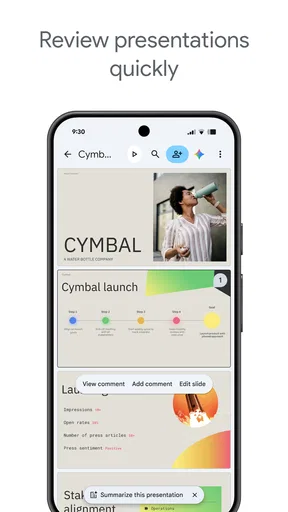
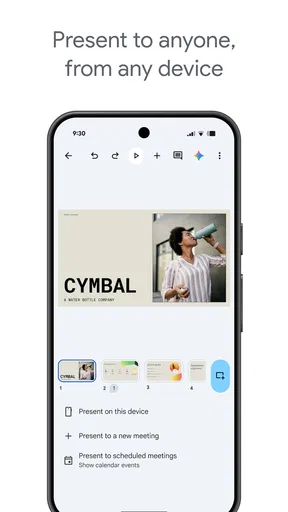
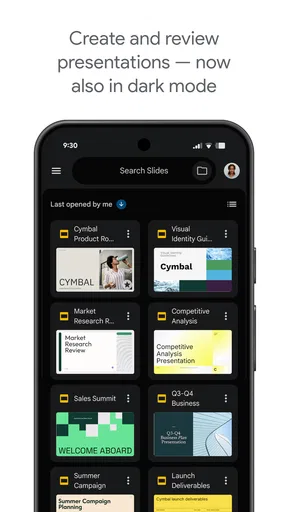
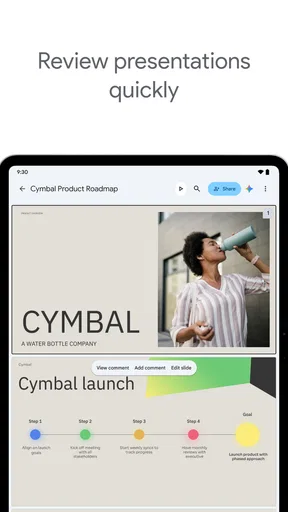
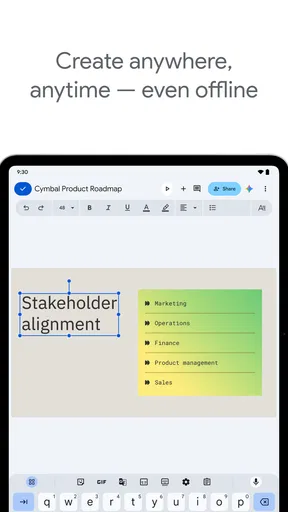
Our Review of Google Slides
 Analysis by Appyee
My first impression of Google Slides is that it lowers the barrier to making a presentation. I can start with a blank deck or a template, put together a few clear slides, and share the result without turning the job into a design project. That ease is the app’s strongest invitation, though the more important question is whether it remains useful once the novelty of trying it wears off.
A quick start, with a practical ceiling
Getting started is straightforward if you already use a Google account. The app is free, and Google LLC makes it as part of Google Workspace. It is a productivity tool for anyone who needs to explain an idea visually, from students preparing a class report to coworkers assembling a meeting deck. Its Everyone age rating also makes it suitable for a broad range of users.
The templates help when I know what I want to say but do not want to face a blank screen. I treat them as a starting structure rather than a finished design: replace the sample text, remove layouts I will not use, and settle on a small set of fonts and colors. That last step matters. A template can make a deck feel coherent quickly, but keeping every decorative element can leave the message competing with the styling.
The first-week appeal is easy to understand: the basics are close at hand, and there is no need to learn a specialist design workflow before producing something presentable. The app has been available since June 25, 2014, and it has accumulated an average rating of 4.2 from around 675,000 ratings. Those figures suggest a widely used, familiar tool, but they do not tell me whether it suits every presentation style. For polished, highly controlled visual work, I would still compare it with dedicated presentation or design software.
What keeps it useful after the first deck
The lasting value comes less from novelty than from how easily a deck can fit into recurring work. I can revisit a presentation, make a small correction, and share the current version instead of hunting through email for the file someone edited last. That is a meaningful advantage when a presentation changes as plans, figures, or responsibilities change.
Collaboration that supports real work
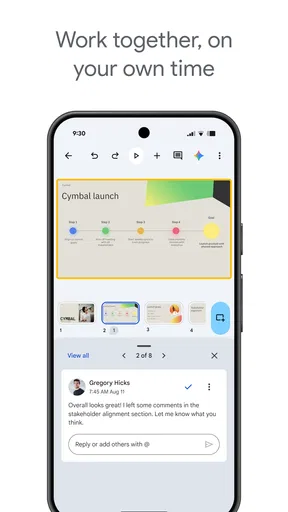
Real-time collaboration is one of the features I return to most. When several people contribute, everyone can work in the same presentation and see changes appear automatically. For a group assignment or a team meeting, that removes the familiar problem of collecting several files called “final” and guessing which one is current. It also makes a deck a shared working document, not just something one person finishes alone.
There is a trade-off: collaboration works best when the group agrees on who is responsible for which slides. If several people adjust the same layout without talking, the deck can become inconsistent even though the file itself stays unified. I find it useful to assign sections, keep slide titles descriptive, and have one person do a final pass for repeated fonts, alignment, and wording. Shared editing prevents version confusion; it does not replace editorial coordination.
Useful across a month, not just a meeting
Integration with other Google services gives the app a practical role in ongoing routines. Pulling information from a Google Sheet can help when a chart or figure needs to reflect work already tracked there, while images from Google Photos can make a deck more personal or concrete. I would still check every imported item in the slide itself: the source material may be correct, but the crop, scale, or surrounding explanation can make it confusing when projected or viewed on a small screen.
A realistic use for me is preparing a short weekly update. I can keep a simple deck, replace the old progress points, bring in current figures, and share it with the people who need it. The benefit is not that the app automatically makes the update insightful; it is that I can reuse a familiar structure and spend more time deciding what changed. For a one-off announcement, that routine might be unnecessary. For recurring reports, it can make the work feel lighter and more consistent.
Design effort and the phone-sized compromise
The design tools are accessible enough for everyday work: themes and fonts help establish a look, layouts and background colors provide room to adjust it, and videos can add context. Dragging elements into place is convenient for rough composition. Still, I would not treat convenience as a substitute for careful layout. A slide that looks balanced on a phone may feel crowded on a larger screen, and tiny text that seems readable while editing can become difficult for an audience to follow.
When I am building on a mobile device, I focus on structure and small corrections rather than trying to perfect every detail. A phone is handy for fixing a title, changing a date, or reviewing someone else’s edits while away from a desk. For a presentation with many objects or detailed visual adjustments, a larger screen is more comfortable. The app’s accessibility options, including screen reader support and closed captions, are valuable, but I would still review the finished deck for readable contrast, clear wording, and sensible pacing.
Habits that reduce repeat work
My most useful habit is to decide the purpose of each slide before adding decoration. One main point per slide gives collaborators a clearer brief and makes later editing easier. I also keep a copy of a reusable outline or structure for recurring presentations, then replace the content rather than rebuilding the same sequence from scratch. That approach makes the app more useful month to month without turning every deck into a clone.
The Explore feature can help when I need a prompt or an image search while working, and add-ons can extend the tool for tasks such as diagrams or more advanced charts. I see both as optional helpers, not requirements. Before adding an extension to a routine, I would ask whether it solves a repeated problem; extra tools can add decisions and clutter when a basic layout already does the job. For a chart that needs precise formatting, I would prepare and check the data carefully rather than assume an add-on will make the underlying story clear.
Where the friction shows up
Cloud access is convenient when I move between devices, and the app is available on desktop and mobile. But access from a phone is not the same as having the same editing comfort everywhere. Dense slides, precise alignment, and extensive rearranging take more patience on a small screen. I would use mobile access as a safety net and a quick-edit option, not as my preferred way to build a complex deck from beginning to end.
Another source of fatigue is the temptation to keep refining a presentation because the controls make changes easy. More themes, images, animations, or add-ons do not necessarily make the argument stronger. I try to stop when the main point is easy to follow, the details are legible, and the deck supports what I plan to say. If I need extensive brand control or highly art-directed layouts, a more specialized presentation or design app may be a better fit than forcing this one to behave like a full design studio.
Who will get the most from it
I would recommend it to people who make practical presentations regularly, especially if they already organize work with Google services or need collaborators to edit one shared deck. Students can use it to build and revise group projects; teams can use it for evolving meeting materials; and individuals can keep a reusable outline for reports or plans. Its appeal is strongest when easy sharing and ongoing edits matter more than elaborate visual effects.
I would steer someone toward another option if their work depends on fine-grained design control, complex branded templates, or a highly polished visual finish that needs careful adjustment across many slides. I would also hesitate to recommend a phone-first workflow to someone who expects to create detailed presentations entirely on a small screen. The app can handle everyday changes on mobile, but the convenience of opening a deck anywhere should not be confused with the comfort of doing every task there.
Getting Started with Google Slides
First things first, getting into Google Slides is a breeze. All you need is a Google account, and you’re good to go. No lengthy downloads or installations; just hop onto your browser or grab the mobile app from your favorite app store.
Once you’re in, you’re greeted with a clean and intuitive interface. It’s like that friendly neighbor who always makes you feel welcome. You’ve got a bunch of templates to choose from, which is perfect if you’re like me and sometimes need a little nudge to get those creative juices flowing.
Features That Stand Out
Now, let’s talk features. One thing I absolutely love is the real-time collaboration. You can invite friends, colleagues, or anyone really, to work on the same presentation. It’s like having a virtual brainstorming session without the need to be in the same room. Changes are updated automatically, which means no more version control nightmares.
Another cool feature is the integration with other Google services. Need to pull in some data from a Google Sheet? No problem. Want to add some flair with images from Google Photos? Easy peasy. Everything works seamlessly, which is a huge plus if you’re already in the Google ecosystem.
Design and Customization
I know what you’re thinking: “Can I make my presentation look good without spending hours on it?” Absolutely! Google Slides offers a variety of themes and fonts to play with. You can adjust layouts, change background colors, and even insert videos to make your slides pop.
Plus, with the drag-and-drop functionality, rearranging elements is as simple as pie. It’s like having your very own digital canvas, ready for whatever masterpiece you’re planning to create.
Performance and Accessibility
Performance-wise, Google Slides runs smoothly on both desktop and mobile. It’s lightweight, so you won’t find yourself waiting ages for things to load. And because it’s cloud-based, you can access your presentations from anywhere. Forgot your laptop at home? No worries, just open it up on your phone or tablet.
Accessibility is also a strong suit here. With options like screen reader support and closed captions, Google Slides ensures that everyone can create and share their ideas without barriers.
Helpful Tips
Here’s a quick tip: Utilize the Explore feature. It’s like having a mini search engine right inside your presentation. Need some inspiration or images? Just type in what you’re looking for, and voila! It’s especially handy when you’re in a creative rut.
Also, don’t forget to check out the add-ons. There are some nifty tools out there that can enhance your presentations even further. From diagramming tools to advanced charts, the possibilities are endless.
The Final Word
So, what’s the verdict? If you’re looking for a reliable, user-friendly platform to create presentations, Google Slides is definitely worth checking out. It’s packed with features that cater to both beginners and seasoned pros, and best of all, it’s free to use. Whether you’re preparing a school project, a business pitch, or just something fun, Google Slides has got you covered.
Why not give it a spin? You might just find yourself ditching those old-school presentation apps for good. Happy sliding!
Does it earn a lasting place?
Google Slides is used at a substantial scale, with over one billion installs and around 23,000 written reviews. Those numbers are context, not a guarantee that it will suit your needs. What matters in daily use is whether you have recurring reasons to open it: shared decks, classes, status updates, or plans that change over time. If presentations are rare for you, keeping another app in your regular rotation may not make sense.
For people who do make them often, I think its value survives beyond the first week because it reduces the housekeeping around a deck. A shared file is easier to maintain than a trail of attachments, and an established outline saves time when a similar meeting comes around. The habit that pays off is modest: keep slides focused, agree on editing responsibilities, and review the finished presentation in the context where people will actually read or present it.
My verdict is that this is a dependable everyday presentation app, not a universal replacement for every tool in the category. It earns space when collaboration, familiar workflows, and quick revisions are part of the job. If visual precision is the job, I would choose a more specialized alternative; if the goal is to explain something clearly and keep it easy to update, I would happily keep Google Slides close at hand.
Privacy and Permissions
See what permissions an app requests and how it handles your data.
- Identity
- find accounts on the device, add or remove accounts
- Calendar
- read calendar events plus confidential information
- Contacts
- find accounts on the device, read your contacts
- Photos/Media/Files
- read the contents of your USB storage, modify or delete the contents of your USB storage
- Storage
- read the contents of your USB storage, modify or delete the contents of your USB storage
- Camera
- take pictures and videos
- Microphone
- record audio
- Wi-Fi connection information
- view Wi-Fi connections
- Other
- view network connections, pair with Bluetooth devices, measure app storage space, full network access, change your audio settings, read sync settings, run at startup, use accounts on the device, control vibration, prevent device from sleeping, toggle sync on and off, install shortcuts, read Google service configuration
How Google Slides Compares
Full ComparisonChoose Google Slides for live collaboration, PowerPoint for presentation tools and Microsoft integration, or WPS Office for an all-in-one document and PDF suite.
| App | Developer | Rating | Price |
|---|---|---|---|
 Google SlidesThis App | Google LLC | 4.4 | Free |
 Microsoft PowerPoint | Microsoft Corporation | 4.8 | Free |
 WPS Office-PDF, Word, Sheet | WPS SOFTWARE PTE. LTD. | 4.4 | Free |
Verdict
Strengths of Google Slides
- Easy collaboration with real-time updates.
- Accessible on multiple devices and platforms.
- Wide range of templates available.
- Offline editing supported with the app.
- Integration with other Google Workspace apps.
Limitations of Google Slides
- Limited design elements compared to PowerPoint.
- Animations are basic and limited.
- Requires a Google account to use.
- File compatibility issues with some formats.
- Needs internet for full functionality.
Other Releases by Google LLC
View All
Google Calendar
Productivity4.6

Google Messages
Communication4.6

Tools4.0

Google TV
Video Players & Editors3.9
Similar Picks in This Category
View AllGoogle Calendar
Google LLC4.6

Google Drive
Google LLC4.3

Google Assistant
Google LLC3.9

Microsoft OneDrive
Microsoft Corporation4.6

Samsung Calendar
Samsung Electronics Co., Ltd.4.1

Microsoft OneNote: Save Notes
Microsoft Corporation4.6
You May Also Like
View All
Frequently Asked Questions
What features does Google Slides offer for creating presentations?
Google Slides provides a wide range of features for creating professional presentations. Users can access a variety of templates, insert images, videos, and charts, and utilize collaborative editing. The app supports real-time collaboration, allowing multiple users to work on a presentation simultaneously, and it integrates seamlessly with other Google Workspace apps.
Is Google Slides available offline on mobile devices?
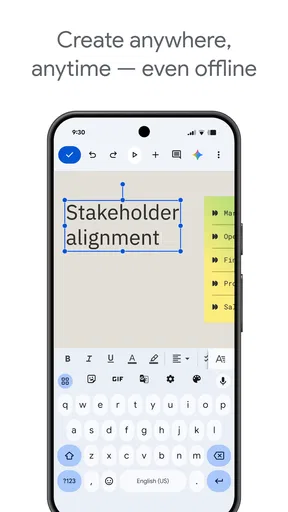
Yes, Google Slides can be used offline on mobile devices. Users need to enable offline access while connected to the internet. Once enabled, you can edit and view presentations without an internet connection. Changes made offline will sync automatically the next time the device connects to the internet.
How does collaboration work on Google Slides?
Collaboration on Google Slides is straightforward and efficient. Users can share presentations with others via email or link, granting view or edit permissions. Multiple users can edit the same presentation simultaneously, and changes are reflected in real-time. The app also includes a commenting feature for discussions and feedback.
Can I import and export presentations in different formats with Google Slides?
Yes, Google Slides supports importing and exporting presentations in various formats. Users can import PowerPoint files and convert them to Google Slides. Similarly, presentations can be exported as PowerPoint files, PDFs, or images. This flexibility ensures compatibility with different platforms and software.
Is Google Slides free to use, and are there any premium features?
Google Slides is free for all users with a Google account. However, there are premium features available through Google Workspace subscriptions, such as enhanced security, administrative controls, and additional storage. These features are typically beneficial for businesses or educational institutions requiring advanced tools.
